You need a WhatsApp conversation for a slide, an app mockup, a social post or a video, and you need it to look like the real thing. Typing into your own WhatsApp and screenshotting it means using real contacts, real numbers and a real phone. The faster way is a browser-based chat mockup generator: you type the conversation, set every detail, and download an image.
This guide shows exactly how to do it for free, without installing an app, and how to make the result look convincing.
Quick Answer
To make a fake WhatsApp chat online:
- Open the free Chat Mockup Generator (WhatsApp is preselected).
- Set the contact's name, profile photo and status (online, typing..., last seen).
- Add messages, choosing for each one who sent it, the time, and the tick status.
- Pick light or dark mode and a phone frame (iPhone or Android).
- Download as PNG, JPEG or WebP, or copy the image straight to your clipboard.
Everything runs in your browser. Nothing you type is uploaded.
Step-by-Step: Build the Chat
Step 1 — Open the generator on WhatsApp
Open the WhatsApp chat mockup. The same tool also covers iMessage, Instagram DM, Messenger, Telegram, Discord, Slack, X (Twitter) DMs, Snapchat, TikTok and Microsoft Teams, so if your mockup is for a different app, switch on the Platform tab.
Step 2 — Set up the two profiles
On the Profiles tab:
- Other person: the name shown in the chat header, plus a profile photo (tap the camera button to upload one from your device).
- Status: online, typing..., offline or last seen with your own text, such as "today at 3:42 PM".
- Your profile: your side of the conversation.
The header is the first thing people look at, so use a plausible name and a real-looking photo. A grey placeholder avatar is the fastest giveaway that a screenshot is a mockup.
Step 3 — Write the messages
On the Messages tab, click Add Message and set, for each message:
- Message text. Line breaks and emoji work as in WhatsApp.
- Sender: You (green bubble, right side) or Other (white bubble, left side).
- Status: Sending (clock), Sent (one grey tick), Delivered (two grey ticks) or Read (two blue ticks).
- Time: each new message defaults to one minute after the previous one, so the chat reads naturally. Change it to whatever you need.
Use the arrow buttons (or drag on desktop) to reorder messages, and the pencil to edit one.
Step 4 — Make it look right
On the Platform tab:
- Light or dark mode: WhatsApp's dark theme is a single click. For a dark-mode chat on an Android frame, you can also open it preconfigured.
- Phone frame: iPhone 14, iPhone 15 Pro, Google Pixel 7, Samsung Galaxy S23, or no frame for a clean screen-only image.
Under Advanced Settings, set the status-bar clock, battery level and signal bars, and choose whether to show timestamps and ticks.
Step 5 — Download
On the Export tab, pick:
- PNG for the sharpest result (best for slides and design files).
- JPEG or WebP for a smaller file (best for posting).
- Resolution scale 1x to 4x. 2x is a good default, and 3x or 4x suits print or zoom-ins.
- Include phone frame on or off.
Click Download, or the copy button to paste the image directly into Slack, Figma, Canva or a doc.
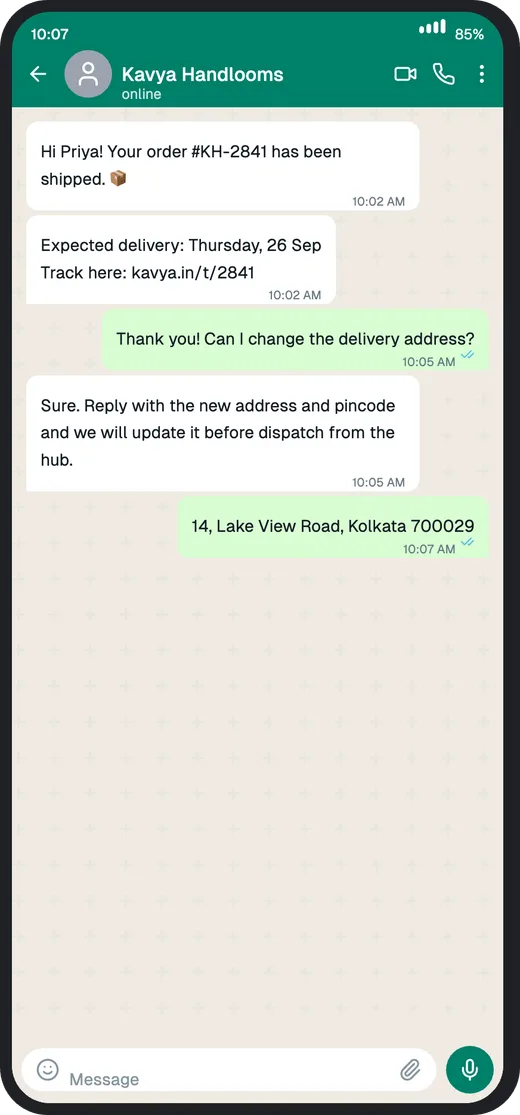
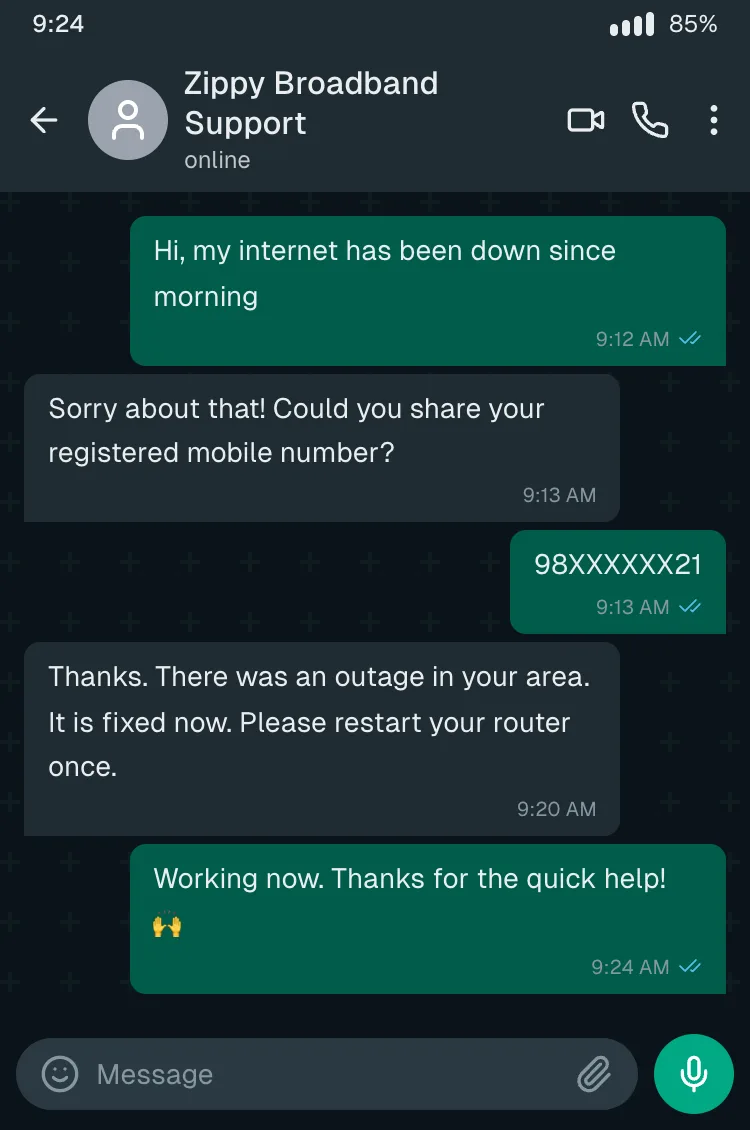
Want a head start? Open one of the ready-made chat templates instead of a blank chat.
Make It Believable: 6 Details That Matter
- Make the times add up. The status-bar clock should be the same as, or a little later than, the last message. A 9:41 status bar over a 10:15 message looks wrong.
- Keep the ticks in order. In a real one-to-one chat, once a message is read, all earlier messages are read too. Blue ticks on the last message and grey ticks on an older one will look off.
- Use short, uneven messages. Real chats have one-word replies, typos and bursts of three messages in a row. Perfect paragraphs look scripted.
- Match the phone to the audience. Most WhatsApp users in India are on Android, so a Pixel or Galaxy frame often reads more naturally than an iPhone.
- Use a real photo in the header. It adds more realism than anything else.
- Crop with intent. For social posts, turn the frame off and export just the screen. For slides, keep the frame so the audience instantly sees "phone".
What It Can't Do (Yet)
Honest limits, so you don't waste time looking:
- One-to-one chats only. Group chats with several named participants are not supported yet.
- Text messages only. Photo messages, voice notes, reactions and quoted replies are on the roadmap.
- Images, not video. For text-story videos, export a frame per step and stitch them in a video editor.
Common Use Cases
- Product and app design: show a WhatsApp flow inside a mockup without using real customer chats.
- Chatbot and support demos: show how a WhatsApp bot will talk to customers before it's built.
- Marketing and ads: "customer conversation" creatives for social posts.
- Teaching and awareness: build example scam messages for training sessions on spotting fraud (see how to spot a fake WhatsApp chat screenshot).
- Stories, skits and memes: the classic text-story format for Reels and Shorts.
Use It Responsibly
A chat mockup is a design and storytelling tool. Don't use one to impersonate a real person, fake evidence, or mislead anyone about a real conversation. Depending on where you are, that can be fraud or defamation, not just a prank. Label mockups clearly when there's any chance someone could take them as real.
Frequently Asked Questions
Can I make a fake WhatsApp chat without downloading an app? Yes. The chat mockup generator runs in your browser on desktop or mobile. There's nothing to install and no signup.
Is it free? Yes. It's free, with no watermark and no limit on how many images you download.
Can I make it look like an Android phone? Yes. Choose the Google Pixel 7 or Samsung Galaxy S23 frame. iPhone 14 and iPhone 15 Pro frames are there too.
Can I show blue ticks and "typing..."? Yes. Set each message's status to Read for blue ticks, and set the other person's status to typing... to show it in the header.
Can I change the time on each message? Yes. Every message has its own time field, and the status-bar clock is set separately under Advanced Settings.
Are my messages uploaded anywhere? No. The chat is built and exported entirely in your browser.
Can I make a WhatsApp group chat? Not yet. The generator currently makes one-to-one chats.
From Mockup to a Real WhatsApp Bot
If you're mocking up a WhatsApp conversation because you're planning an automated one, such as order updates, appointment booking or support replies, you can build the real thing. Edesy's WhatsApp Bot Builder turns that flow into a working bot on the official WhatsApp Business API. To check how a single business message will render before you send it, use the WhatsApp message preview.
Make Your First Chat Now
Open the tool, type the conversation, download.