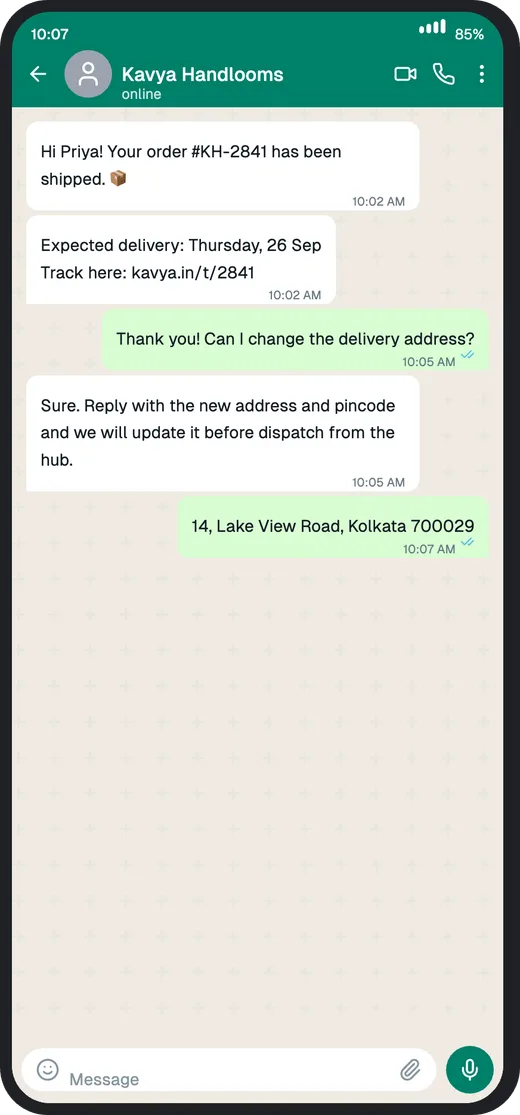
A WhatsApp chatbot sells itself the moment the client sees the conversation on a phone: "Your order has shipped", "Reply 1 to confirm your appointment". Architecture diagrams and feature lists don't do that. A realistic screenshot of the chat does.
Whether you're an agency pitching a bot, a founder putting a WhatsApp flow in an investor deck, or a product team getting sign-off, here's how to go from idea to a convincing mockup in under an hour, and then to a working bot.
Quick Answer
- Pick one high-value moment (order update, appointment reminder, lead qualification).
- Script 4-7 messages of the happy path: trigger, bot message, customer reply, bot resolution.
- Build it in the free Chat Mockup Generator with the client's business name and logo as the contact.
- Export with a phone frame (PNG, 2x) and put one conversation per slide.
- Show the real thing next: build the flow in a WhatsApp Bot Builder and demo it live.
Step 1 — Choose the Moment That Sells
Don't mock up the whole bot. Pick the one moment where the client instantly sees saved time or more revenue:
| Business | The moment to mock up |
|---|---|
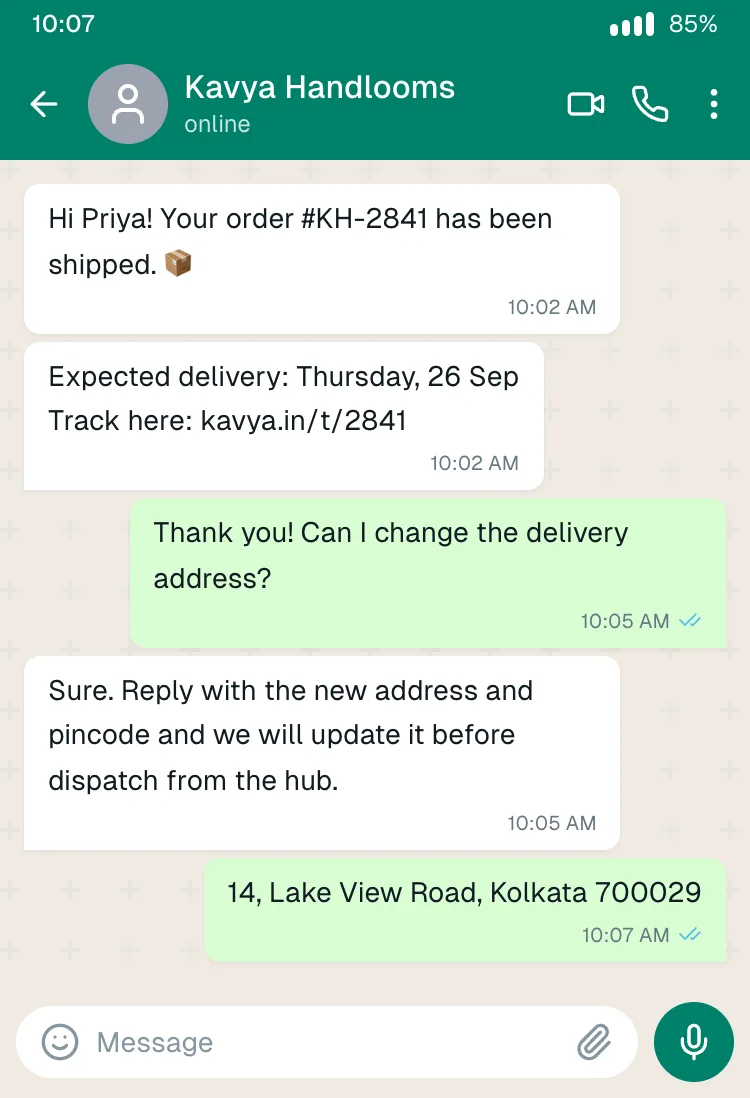
| D2C / e-commerce | Order shipped + address change handled automatically |
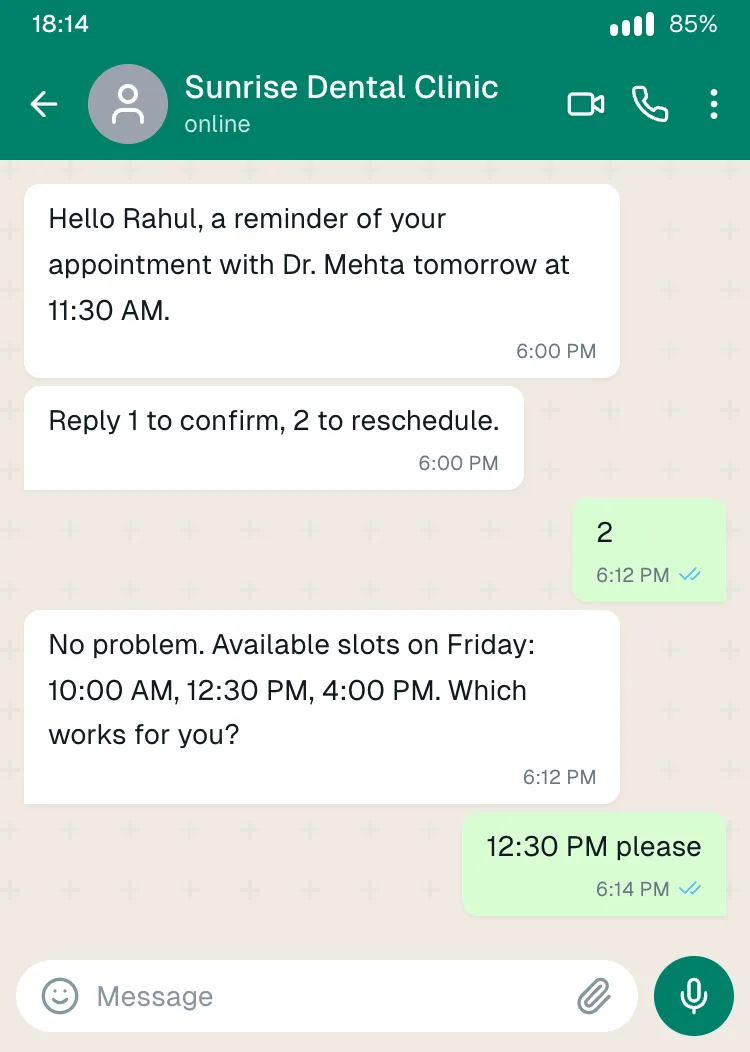
| Clinic / salon | Appointment reminder with 1-tap reschedule |
| Coaching / education | Course or fee reminder, answering "where's my class link?" |
| Real estate | Lead qualification: budget, location, site-visit booking |
| Support-heavy services | Outage message + self-service fix |
Step 2 — Script the Conversation
Write it as plain text first:
- Trigger: what starts the chat (an order, a booking, a missed payment).
- Bot message 1: the useful information, personalised ("Hi Priya! Your order #KH-2841 has shipped").
- Customer reply: a realistic request, ideally one that would normally need a human ("Can I change the address?").
- Bot resolution: handles it, or hands off to a human gracefully.
Keep bot messages short. WhatsApp is a phone screen, not an email. For choices, write them the way WhatsApp bots often phrase them: "Reply 1 to confirm, 2 to reschedule."
Step 3 — Build the Mockup
Start from a template that's already close:
Then customise it:
- Contact name: the client's business name, as their customers would see it.
- Profile photo: the client's logo (Profiles tab, camera button).
- Messages: your script. Bot messages come from Other (left), the customer is You (right), from the customer's point of view.
- Times: realistic gaps, such as the bot replying in the same minute and the customer a few minutes later.
- Frame: a Pixel 7 or Galaxy S23 for Indian consumer audiences, an iPhone for US ones.
Step 4 — Put It in the Deck
- One conversation per slide. The phone on one side, and 2-3 bullet outcomes on the other (for example, fewer "where is my order?" calls, and address changes handled without an agent). Use the client's own numbers where you have them.
- Before/after works well: a slide with the manual process (calls, missed messages), then the bot mockup.
- Export PNG at 2x or 3x so it stays sharp on a projector.
- Label it "Sample conversation" in small text. It sets expectations honestly, and clients appreciate it.
Step 5 — Validate the Message Itself
If the flow starts with a business-initiated message (a reminder or an update), it will need to be an approved WhatsApp message template. Two free tools help before you pitch:
- WhatsApp Message Template Builder: draft the template text with variables.
- WhatsApp Message Preview: check how a single business message will render.
From Mockup to a Working Bot
A mockup wins the meeting, and a working demo wins the contract. With Edesy's WhatsApp Bot Builder, you can turn the same scripted flow into a real bot on the official WhatsApp Business API: order updates, reminders, FAQs, lead capture and human handoff.
Try the WhatsApp bot builder free →. It's self-serve, so you can build the flow from your mockup directly.
Common Mistakes
- Mocking up features the bot won't have. If the pitch shows it, the client will expect it. Only mock up what you can deliver.
- Robotic copy. "Your request has been processed successfully" loses to "Done! Your new slot is Friday 12:30 PM."
- Too many messages. Past 7 bubbles, the slide becomes a reading exercise.
- Real customer data. Never put a real customer's name or number in a pitch mockup.
Frequently Asked Questions
How do I show WhatsApp bot buttons in a mockup? The mockup draws text messages, so write options as text ("Reply 1 to confirm"), or add button shapes in your slide tool on top of the exported image.
Should the mockup be from the business's or the customer's point of view? The customer's. That's what the client's customers will see, and it's what makes the pitch concrete.
Can I use the client's logo? Yes, in a pitch to that client. Upload it as the contact's profile photo.
Is the chat mockup generator free? Yes. No signup, no watermark, PNG/JPEG/WebP export up to 4x.
Build Your Pitch Mockup
Open the order-update template →
More starting points are in 13 chat screenshot templates.