iMessage screenshots are everywhere: memes, text-story videos, app mockups, ad creatives. Making one "for real" means owning an iPhone, using a second Apple ID, and texting yourself. You don't need any of that. A browser-based chat mockup generator draws the iMessage screen for you, and it works just as well from an Android phone or a Windows PC.
Quick Answer
To make a fake iMessage conversation:
- Open the free Chat Mockup Generator on iMessage.
- Set the contact name and photo on the Profiles tab.
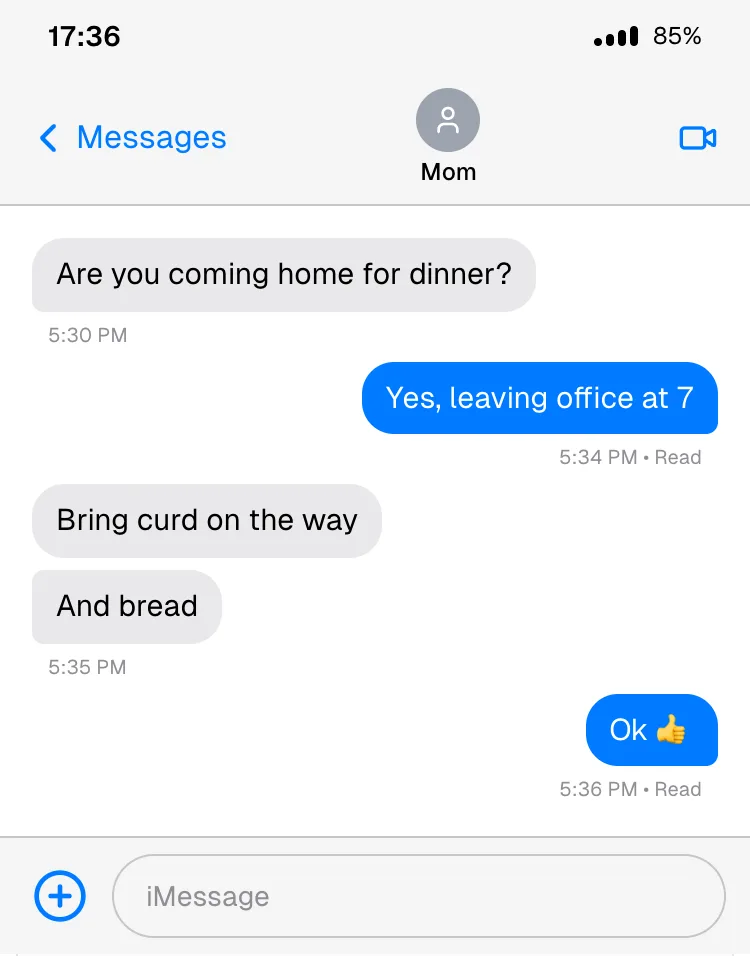
- Add messages: You (blue, right) or Other (grey, left), each with its own time and status.
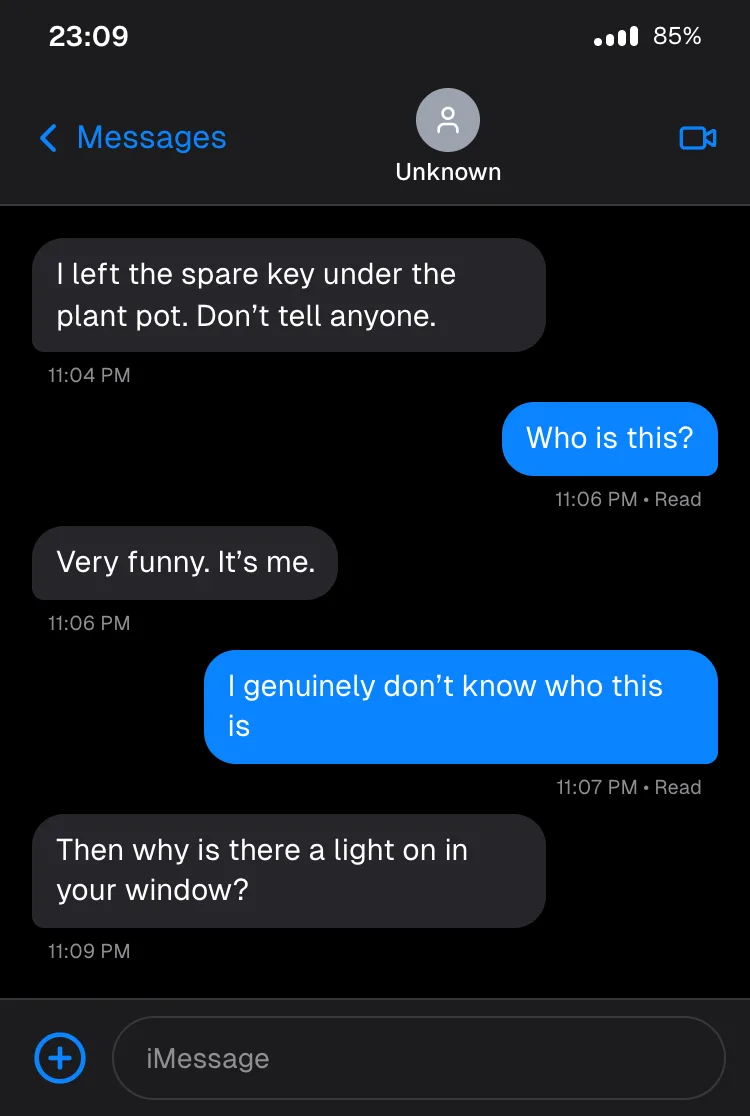
- Switch to dark mode if you want the black iOS look.
- Download the image, with or without the iPhone frame.
Step by Step
1. Open the generator on iMessage
This link opens iMessage with an iPhone 15 Pro frame already selected. The iPhone 14 frame (with the notch) is also available, or choose No Frame for just the screen.
2. Set the contact
On Profiles, set the name shown under the avatar at the top of the chat. Upload a photo with the camera button. Without one, the header shows a grey placeholder, like an unsaved contact.
3. Write the conversation
On Messages, click Add Message for each bubble:
- Sender: You gives the blue iMessage bubble on the right. Other gives the grey bubble on the left.
- Status: set a sent message to Delivered or Read, and the tool prints "• Delivered" or "• Read" under it, like iOS.
- Time: each message has its own time. A new message defaults to one minute after the previous one.
To show the other person typing, set their status to Typing... on the Profiles tab. The grey three-dot bubble appears at the bottom of the chat.
4. Dark mode and the status bar
Toggle Dark on the Platform tab for the black background and dark-grey bubbles. Under Advanced Settings, set the status-bar clock (the classic Apple marketing time is 9:41), battery percentage and signal bars.
5. Download
On Export, choose PNG for the crispest image, and a resolution scale of 2x or 3x for sharp text on retina screens. Leave Include phone frame on for slides, or turn it off for social posts and video edits.
Tips for a Believable iPhone Screenshot
- Clock matches the last message. A status bar at 9:41 above a message sent at 11:06 PM gives it away instantly.
- Only your bubbles show receipts. iOS shows "Delivered"/"Read" under messages you sent, never under received ones.
- Only the latest one, in fact. A real iPhone shows "Read" under your most recent message only. Set your earlier messages to Sent (which shows no label) and only the last to Read.
- Group bubbles in bursts. Real iMessage threads have runs of two or three short messages from the same person.
- Use iPhone-style punctuation. iOS auto-inserts curly quotes and apostrophes (’ not '). It's a small tell, but designers notice.
- Pick the right frame for the story. iPhone 15 Pro has the Dynamic Island, iPhone 14 has the notch. Choose one that fits when your story is set.
What It Doesn't Do (Yet)
- Blue bubbles only. Green SMS bubbles aren't available. Every sent message is drawn as an iMessage.
- One-to-one chats only. No group iMessage threads yet.
- Text only. No tapbacks (reactions), photos or audio messages yet.
If you need those, see our comparison of fake chat generators. Some tools do group chats and media messages.
Popular Uses
- Text-story videos for Reels, Shorts and TikTok. See how to make text-message story videos.
- App and product mockups that show your notification or message flow on iOS.
- Memes and relatable posts ("texting my mom vs texting my friends").
- Scripts and storyboards for films and ads that feature a text exchange.
Use It Responsibly
A mockup is fine for content and design. It's not fine for impersonating a real person or faking evidence of a conversation that never happened, which can amount to fraud or defamation. If someone could mistake it for real, label it.
Frequently Asked Questions
Can I make an iMessage screenshot on Android? Yes. The generator runs in any browser, so it works on Android phones, Windows PCs and Chromebooks. No iPhone needed.
How do I show "Read" under a message? Set that message's status to Read. The time and "• Read" appear under your blue bubble, as on iOS. Turn off Show read receipts in Advanced Settings to hide them.
Can I make the green SMS bubbles? Not yet. The iMessage mode draws blue bubbles only.
Is there a watermark? No. Downloads are free and unwatermarked.
Is my conversation stored anywhere? No. Everything happens in your browser, and nothing is uploaded.
Make Your iMessage Screenshot
Making something for WhatsApp instead? Follow the WhatsApp version of this guide.